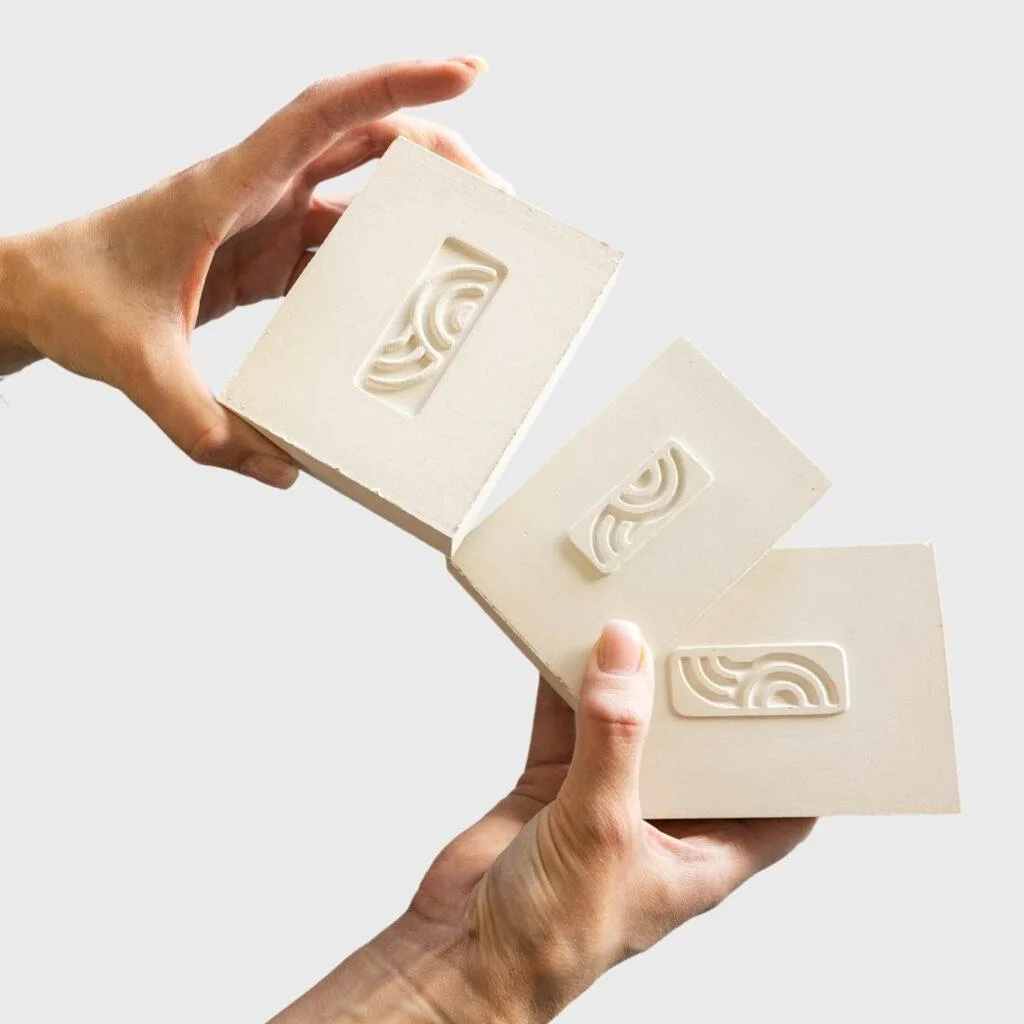
Make distraction
inconvenient.
Fika blocks the apps you choose. Leave your key elsewhere. To unblock, go back to it.
More time for what matters to you.
Keep your key away from where you use your phone. Getting back into blocked apps means getting up and walking over. That small step gives you time to decide what you want to do next.
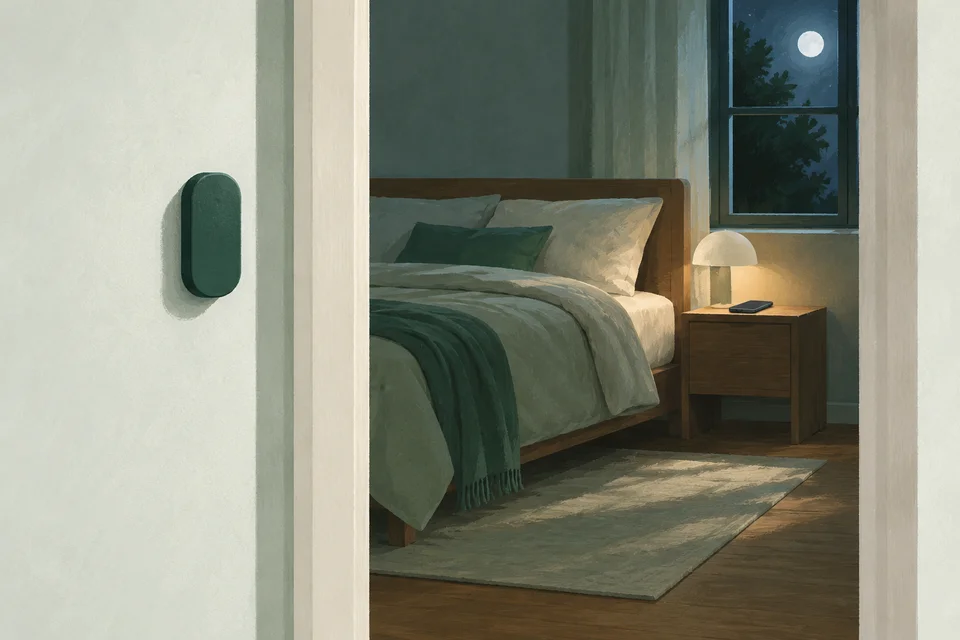
Less scrolling in bed
Block social and video apps before bed. Leave your key by the bedroom door. Another video now means getting out of bed.
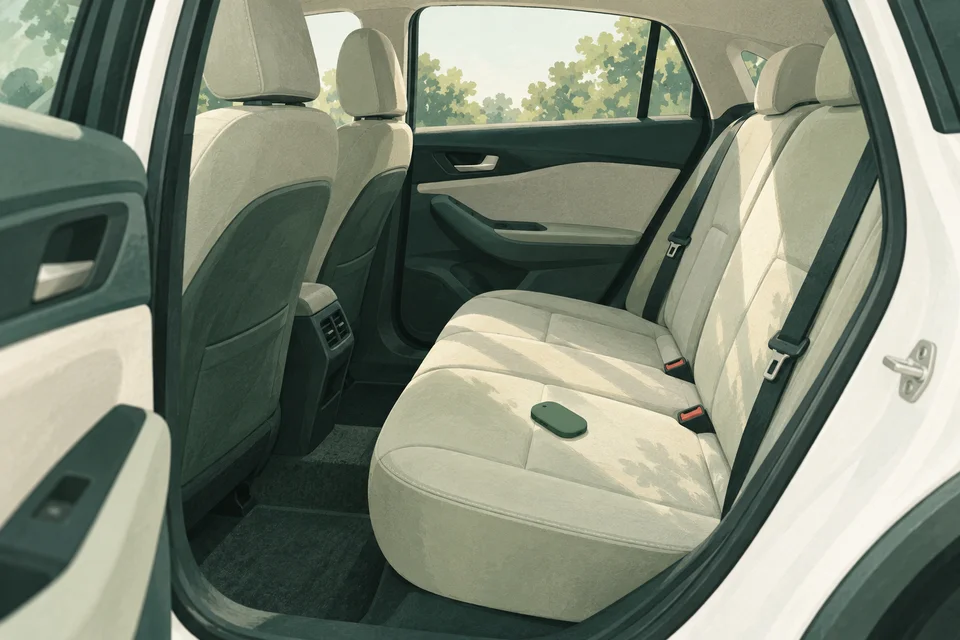
Texts can wait until you park.
While parked, block messaging apps and leave your key in the backseat. Keep calls and directions available. Unblock after you park.
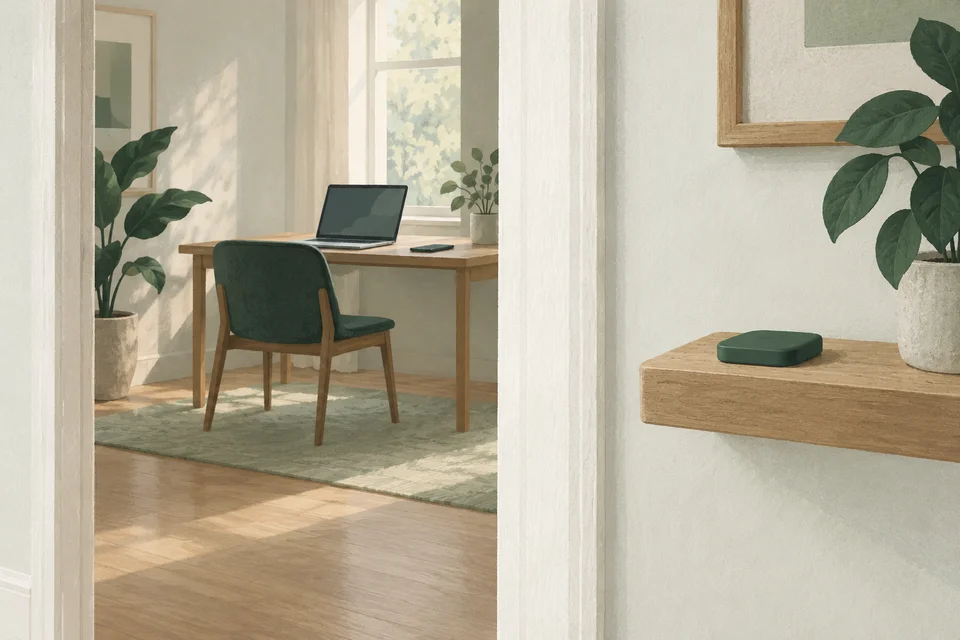
More time with family
Block work and social apps during dinner. Leave your key in another room. Keep your phone available for calls and photos.
Illustrations · Fika Key design to be confirmed.
How Fika works
Choose what to block
Give Fika Screen Time access, then choose the apps and websites to block.
Set up your key
Follow the steps in Fika to connect your key.
Block and unblock
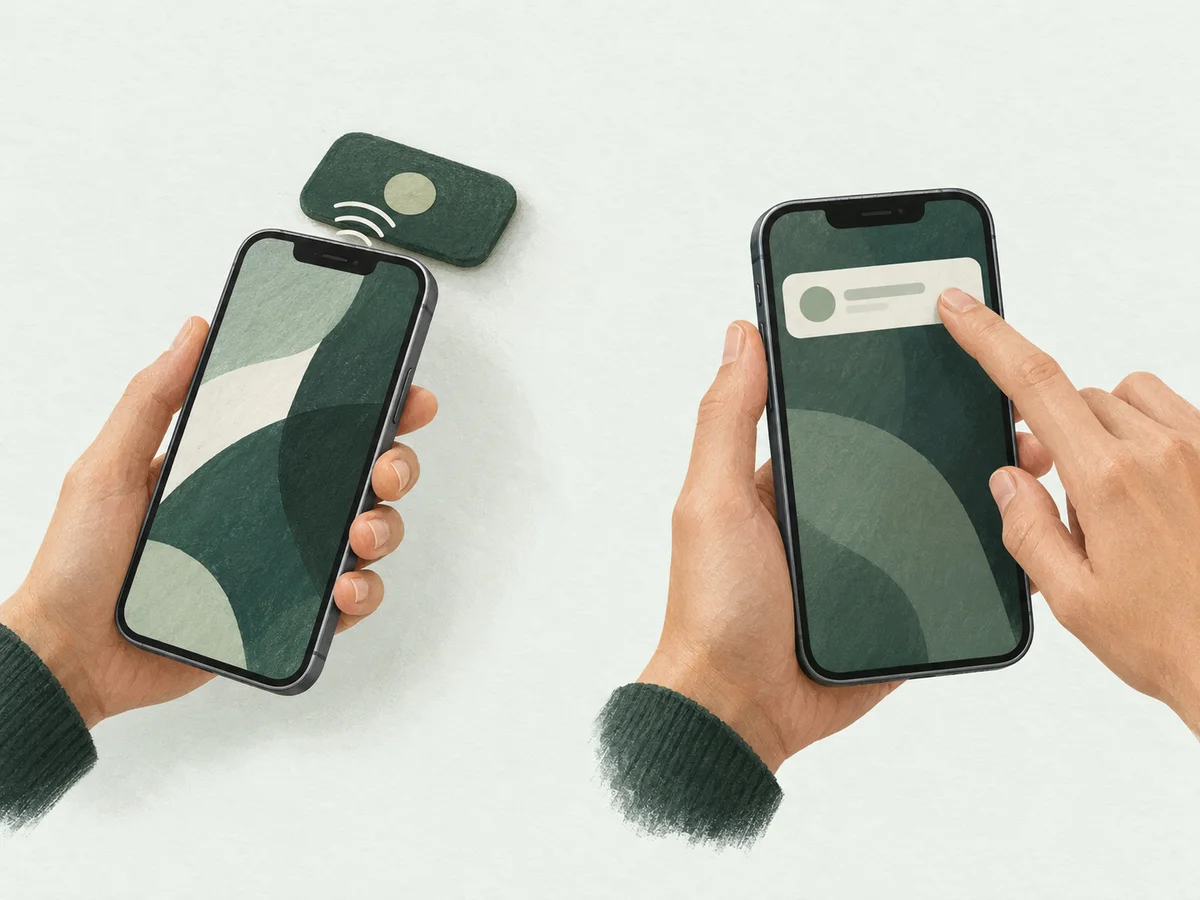
Hold the top of your iPhone near your key, then tap the notification to start blocking. Do the same to unblock.
With an optional setup in Apple’s Shortcuts app, you can skip the notification tap.
Questions about Fika

- Choose what stays available
- Only the apps and websites you choose are blocked. Save different selections for bedtime, driving, or work, and choose which ones each key uses.
- Can I use an NFC tag or QR code?
- Fika will also support NFC tags and QR codes.
- What if I don’t have my key?
- Fika includes five emergency unlocks per installation. Press and hold the emergency unlock button for 20 seconds to use one. With assistive technology, wait 20 seconds, then confirm.
- Can I delete Fika while blocking?
- While blocking is active, you can’t delete any apps, including Fika. Use your key or an emergency unlock to stop blocking and allow app deletion again.